Opening the apps the first time
Easiest way: get the free Pixel Is Truth app. You approve it once using the steps below, then it installs everything you buy with one click and no more warnings.
Our apps are made by one independent developer and aren't registered with Apple's paid program. So the first time you open one, macOS shows this message. That's expected: it appears for every app outside that program, not because anything was found.
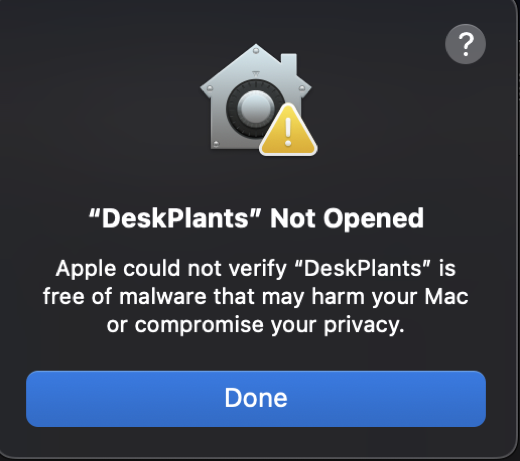
- Open the downloaded .dmg and drag the app into Applications.
- Double-click the app. When the message above appears, click Done (not Move to Trash).
- Open System Settings → Privacy & Security and scroll down to the Security section.
- You'll see "[App name]" was blocked to protect your Mac. Click Open Anyway and enter your Mac password.
- Click Open in the last box. From now on the app opens normally, and you never do this again for that app.
Apps live in your menu bar (look for their icon near the clock) or on your desktop. Stuck? Email support@pixelistruth.com and we'll help.